Settings reference
Last updated: 10 August 2026
Every setting the Video Ingester has, what it does, and why it exists.
Most settings live in the Settings dialog, opened with the SETTINGS button in
the top-right corner of the main window. A few advanced settings exist only in the
settings.json file and are listed at the end of this page.
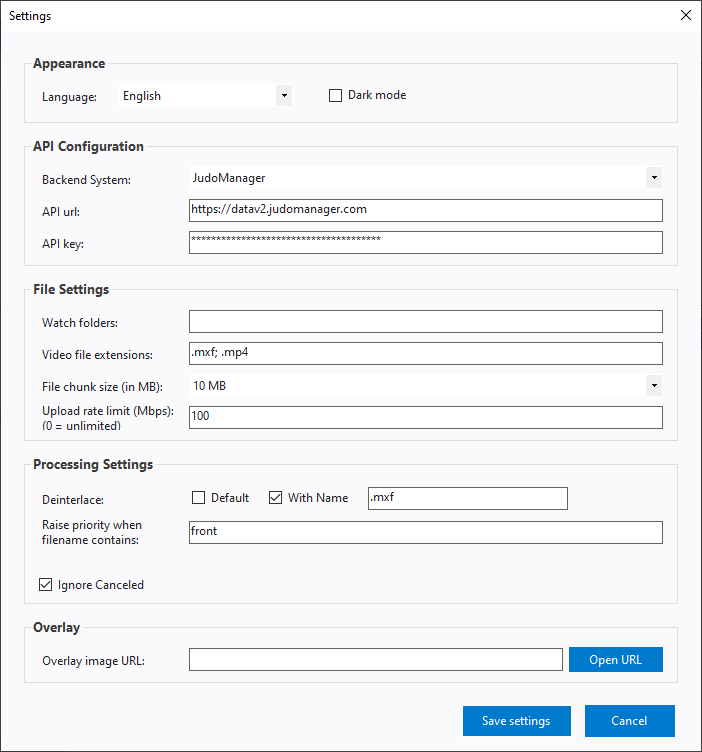
Changes take effect only when you click Save settings. Clicking Cancel, or closing the dialog with the ✕, discards everything you changed.
Appearance
Language
The language of the user interface. English and French are available.
Changing the language requires a restart. After saving, the Ingester offers to restart itself for you; if you decline, the new language appears the next time you start the program.
Dark mode
Switches the whole application between a dark and a light colour scheme. Unlike the language, this applies immediately — no restart needed.
Dark mode is the default for a fresh installation. It exists because Ingester PCs often sit in darkened control rooms next to a video wall, where a bright white window is uncomfortable and distracting.
API Configuration
These three settings tell the Ingester which platform to upload to and how to authenticate. Nothing works until all three are filled in — the Ingester refuses to save the settings and refuses to create jobs without them.
Backend System
Which platform this Ingester serves:
| Choice | Used for | Stored in settings.json as |
|---|---|---|
| JudoManager | National federation and club events managed in JudoManager. | JM |
| Judobase | IJF events published on Judobase. | JB |
Choosing a backend system automatically fills in the matching API url below. If the API url field already contains a different address, you are asked whether to replace it.
This dropdown exists because picking the wrong endpoint used to be the single most common configuration mistake: an operator would upload to Judobase with a JudoManager address, and every contest code would come back "not recognised".
API url
The address of the backend the Ingester talks to.
| Backend System | API url |
|---|---|
| JudoManager | https://datav2.judomanager.com |
| Judobase | https://datav2.ijf.org |
The field is read-only and is filled in for you when you choose a Backend System.
Older versions of this documentation called this field JMSharp API url. It is the same setting; the label was shortened.
API key
The secret key that authorises this Ingester against the backend. It is issued to you — contact the Control Room team if you do not have one.
If the key is missing or wrong, uploads fail with Access Denied. See Troubleshooting.
File Settings
Watch folders
The folders the Ingester monitors for new video files, separated by semicolons — for example:
D:\Cutter\Mat1; D:\Cutter\Mat2
Sub-folders are included automatically, so pointing at a parent folder is enough.
Folders that do not exist are silently dropped when you save. If you save and a folder disappears from the list, the path was mistyped or the drive was not connected.
If no watch folders are configured at all, the Ingester tells you so and offers to open the Settings dialog.
Video file extensions
The file types the Ingester treats as video, separated by semicolons — by default
.mxf; .mp4. Anything else appearing in a watch folder is ignored.
This list exists so that the working files a cutter leaves behind — project files, thumbnails, temporary files — never become upload jobs.
Extensions are compared case-insensitively and are stored in lower case.
File chunk size (in MB)
How large each piece of a multi-part upload is. Available values: 5, 10, 25, 50, 100, 150 MB. The default is 10 MB.
- Slow or unreliable connection → choose 5 MB. If a chunk fails, only 5 MB has to be re-sent rather than 150 MB.
- Fast, stable connection → larger chunks. Fewer round trips means less overhead.
A 100 MB file uploaded with a 10 MB chunk size is sent as 10 chunks.
Upload rate limit (Mbps)
A ceiling on how fast the Ingester may upload, in megabits per second. 0 means
unlimited, which is the default. Any value you enter below 5 is raised to 5.
Use this when the venue's internet connection is shared with something that must not be starved — a live stream, scoring system or commentary feed. Without a limit the Ingester will happily consume the entire uplink.
The limit applies to the whole program, not per job, so it holds no matter how many uploads are running.
Setting a limit also reduces how many chunks are uploaded in parallel (roughly one parallel upload per 10 Mbps, between 1 and 4). Opening many connections you cannot feed only adds overhead, so the Ingester scales them back automatically.
Processing Settings
Deinterlace
Older broadcast cameras record interlaced video, where each frame is made of two half-images captured a fraction of a second apart. Played back on a computer screen this produces visible comb-like artefacts on movement. Deinterlacing removes them during encoding.
Two independent rules decide whether a file is deinterlaced:
| Control | Effect |
|---|---|
| Default | When ticked, every video is deinterlaced. |
| With Name + text box | When ticked, a video is deinterlaced if its file name contains the text in the box. The default text is .mxf, which effectively means "deinterlace everything recorded as MXF". |
Either rule is enough to trigger deinterlacing.
There is also a third, automatic path: if neither rule matched and the Video CutterV2's
companion .json file explicitly marks the recording as not progressive, the
Ingester turns deinterlacing on by itself. The camera knows better than a file-name
rule, so its own flag wins when it is available.
Deinterlacing can also be toggled per job in the Contest Data form.
Raise priority when filename contains
If a file name contains this text, the resulting job is created with a higher priority — priority 4 (High 2) instead of the default 5 (Medium 1) — and is processed before the others. Upper and lower case are ignored when matching.
The typical use: two cameras record every fight, front and rear, but the front angle
is the one people want to watch first. Entering front here means front-angle files
jump the queue while rear-angle files follow behind.
Leave it empty to disable the boost. See Job priority for the full picture.
Ignore Canceled
Controls what happens to files you have cancelled when the watch folders are scanned again.
| State | Behaviour |
|---|---|
| Ticked (default) | A cancelled file is remembered and is not picked up again. |
| Unticked | A cancelled file is treated as new and a fresh job is created for it. |
Leave it ticked in normal operation — otherwise a file you deliberately cancelled comes straight back on the next scan. Untick it temporarily when you cancelled a batch of files by mistake and want them all re-queued.
Overlay
Overlay image URL
A web address pointing at an image — typically a sponsor or broadcaster logo — that is burned into the encoded video by the platform's encoder.
Rules:
- It must be a full
http://orhttps://address. Local file paths such asD:\logos\sponsor.pngare rejected, because the encoder runs in the cloud and cannot reach your disk. - Leave it empty for no overlay.
- The Open URL button opens the address in your browser so you can confirm the image is reachable and is the right one.
The URL is stored with each job as it is created. Changing it affects new jobs only — jobs already in the queue keep the overlay they were created with.
If the address is invalid, the Ingester writes OVERLAY IMAGE WILL NOT BE ADDED TO THE
ENCODER DATA! to the log and continues without an overlay rather than failing the job.
Settings on the main window
Two settings are not in the Settings dialog because you change them while working:
WATCHER / WORKER
The two toggle buttons at the top of the main window switch the Watcher and Worker roles on and off. They take effect immediately and are saved automatically.
Switching Worker off is the normal way to pause uploading — for instance to free the connection during a live stream — without losing the queue. Jobs keep accumulating and are uploaded when you switch it back on. While worker is off and jobs are waiting, the WORKER button blinks as a reminder.
Advanced settings (settings.json only)
These have no user interface. Edit C:\FairReplay\Ingester\settings.json with the
Ingester closed, then start it again — the Ingester rewrites the file when it saves,
so edits made while it is running are lost.
| Setting | Default | What it does |
|---|---|---|
MaxEncodeThreads | 4 | How many encoding workers run in parallel. Clamped to 1–5. |
MaxDegreeOfParallelism | not set (10) | How many upload chunks are sent at the same time. Lowered automatically when an upload rate limit is set. |
DefaultPriority | 5 | The priority given to a new job when no priority boost applies. See Job priority. |
EncoderQueueId | not set | Routes encode requests to a specific encoder queue on the platform. |
IsWatcher, IsWorker | false | The saved state of the WATCHER and WORKER buttons. |
UiLanguage, UseDarkTheme | English, true | The saved state of the Appearance settings. |
A few further entries exist in settings.json that are not listed here. They are
development and testing switches rather than operator settings, and changing them can
alter what is published to the platform. If you find one you do not recognise, leave it
alone and ask the Control Room.